

Cobra
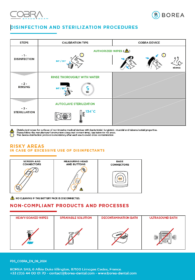
In order to carry out the disinfection and sterilization of your Rayplicker Cobra, be sure to follow the good practices indicated below in order not to damage the device.
In order to take a shade, make sure that the following points are validated:
- Your device must be light on and in video acquisition mode.
- The Rayplicker Vision must be connected and synchronized to the Cobra.
- The video stream must be in “activated” mode in the settings of your Cobra device from the Rayplicker Vision software
- The current user selected from the Cobra (from the Cobra wifi settings) must be the correct user.
If, despite this, the problem persists, there may be a network security problem (port opening, firewall, etc.)
Here are network technical details (intended for network administrators):
Communication Cobra:
- Protocols:
- TCP (ports: 6050/6051)
- UDP (ports: 6050/6051)
Stream Cobra:
- Protocols (Note that the protocols below are used for RTP [Real-Time Protocol] and RTSP [Real-Time Streaming Protocol]):
- TCP (port: 1234)
- UDP (port: 1234)
Attention: Firewall exception must be set for Rayplicker Vision application otherwise Cobra streaming cannot be played
Upload/download to/from Cobra device:
- Protocol: FTP (port: 21)
Rayplicker Software
old version
- Please check that your smartphone and your computer are connected to the same Wi-Fi network.
- The computer must be connected by Wi-Fi and not by an Ethernet cable.
- Please check that the file name does not contain any special characters.
- Borea recommends using only alphanumeric characters to name your files and avoid any archiving problems.
Information: The following special characters (<,>,:, “, /, \, |,?, *) are automatically replaced by underscores ” _ “.
The inability to send an order via Cloud can be related to various issues. Make sure to check that all the points below are validated:
- The laboratory receiving the order has been added to my contact list via the “Rayplicker community”. To confirm this, this lab must have a “cloud” icon next to its address. This indicates that this laboratory is equipped with the Rayplicker software solution.
- Your computer must have internet access. Check the connection in the “Settings / Administration” tab, the connection to the Rayplicker Cloud must be activated.
- The fields indicated in blue in the production tab must be completed.
- Please check that the import or export folder name does not include any special characters.
- To avoid any problems, Borea recommends that you use only alphanumeric characters to name your import / export folder.
- Please check that your computer has internet access.
- Check that the “Rayplicker Cloud Connection” is active in Settings> Administration.
- Make sure you have specified a postal address in Settings> Company> Address. If a dentist cannot find you in the Cloud and you do not receive orders, you may have forgotten to enter your address. To do this go to the settings tab of your software.